Legacy Office Link Migration Tool
Modernize existing Microsoft Word documents and PowerPoint presentations without rebuilding them from scratch. The Legacy Office Link Migration Tool automatically finds traditional/native Office links and converts them into reliable AnalysisPlace links, allowing you to continue maintaining and updating your documents using a modern, enterprise-friendly document automation platform.
The tool is free to use. You can easily use it from within the AnalysisPlace Word or PowerPoint add-ins.
Please provide feedback on your experience using the tool, including any issues or suggestions for improvement.
Why Migrate Legacy Office Links?
Many organizations still rely on documents created using Excel-to-Word or Excel-to-PowerPoint links built with features such as Paste Special, OLE objects, linked charts, linked pictures, and other legacy Office linking technologies.
While these links were useful when originally created, they often become difficult to maintain over time. Source workbooks are moved or renamed, links break, updates become unreliable, and users frequently avoid making changes because they are unsure how the document was originally constructed.
The Legacy Office Link Migration Tool gives you a practical upgrade path. Existing links are identified and converted into modern content controls in Word and shape tags in PowerPoint, allowing you to manage future updates using the same automation platform used for newly created linked content.
Link Types
The tool recognizes most of the most common Excel-to-Word and Excel-to-PowerPoint linking techniques used throughout organizations today.
- Text linked to Excel cells
- Table content linked to Excel ranges
- Charts linked to Excel data
- Embedded workbooks
- Pictures, shapes, and images linked to Excel
How It Works
Below are instructions on how to use the tool and how to update/fix invalid links.
- Prepare your documents
- Open your existing Word or PowerPoint document containing legacy Office links.
- Open the Excel workbook that the document is linked to (or that you would like to link it to).
- Activate the add-in in both Excel and Word or PowerPoint. Adding the add-in is very easy. Learn More
- Run the Legacy Office Link Migration Tool.
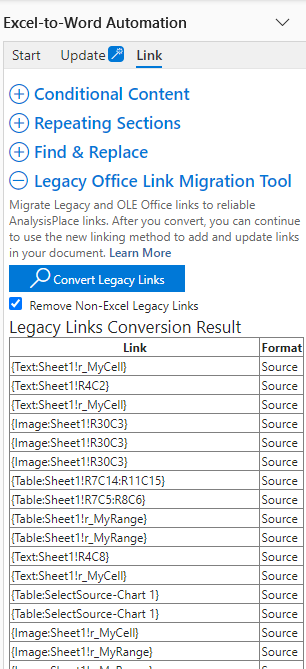
- Click "Convert Legacy Links" from the Link tab of the Word or PowerPoint add-in.
- The tool uploads a copy of your document, converts the links, then opens the copy that is the converted document.
- The migration process removes legacy Office links and replaces them with the modern equivalent (a content control link in Word or a shape tag-based link in PowerPoint).
- The tool displays a list of the links that were converted (in the add-in in the original document).
- Refer to this list when editing the links in the new document
- Test and modify the new links (in the newly opened copy)
- Save this copy as your new template
- Activate the add-in in this new document.
- Use the linking tools on the Link tab of the add-in (in this document along with your Excel workbook) to list, verify, and update the new links. In many documents, some/many of the links will be invalid and will need to be modified. For example, if the original link was linked to an Excel address (like A1:C3), then you'll need to create a named range. See the details by link type below.
- Modify other item properties, as desired. For example, switch from destination-formatted to source-formatted (Flex) tables using the linking tools in the Excel, Word, or PowerPoint add-ins.
- Continue to update your document and maintain the links using normal AnalysisPlace workflows.
Benefits
- Preserve existing documents instead of recreating them.
- Reduce dependence on fragile OLE and Paste Special links.
- Convert legacy content into maintainable AnalysisPlace links.
- Simplify document updates and source management.
- Improve long-term reliability of automated reports.
- Have complete control over updates.
- Reorganize/copy documents or content and rename files... and the content still updates reliably.
- Share linked documents with colleages/customers so they can perform updates.
- Easily publish documents so recipients can't see any links (using "Hide Content Controls")
- Create a migration path for decades of existing Office documents.
- Exposes the link so AI agents can see and interact with the link, enabling powerful automation scenarios.
- Add powerful features, such as better formatting options, Repeating Sections, Conditional Sections, API, business templates, etc.
Ideal For
- Financial reporting documents
- Management reports
- Board presentations prepared from Word templates
- Engineering and technical reports
- Regulatory and compliance documentation
- Organizations with large libraries of linked Office documents
Link Type Details
The table below details the different types of links that exist and that the Legacy Office Link Migration Tool can convert.
It displays information about the link type, how the user originally created the Office link, what the migration tool does, an example of the resulting tag in the converted document, and likely next steps the user should take to verify and update the links. See Next Steps below.
| Link Type | Excel Source Example | Actual Content | How Users Created the Link | Word Migration Tool Tasks | PowerPoint Migration Tool Tasks | Result Example Tag | Next Steps |
|---|---|---|---|---|---|---|---|
| Excel cell - Named Range (single cell) | Sheet1!r_MyCell | Text | Copy Cell → Paste Special → Link → Text or HTML |
|
Not Supported by PPT | {Text:Sheet1!r_MyCell} | Verify/modify source |
| Excel cell - Address (single cell) | Sheet1!A1 | Text | Copy Cell → Paste Special → Link → Text or HTML |
|
Not Supported by PPT | {Text:Sheet1!R1C1} | Select source |
| Excel range - Named Range | Sheet1!r_MyRange | Table | Copy Range → Paste Special → Link → Text or HTML |
|
Not Supported by PPT | {Table:Sheet1!r_MyRange} | Verify/modify source |
| Excel range - Address | Sheet1!A1:E3 | Table | Copy Range → Paste Special → Link → Text or HTML |
|
Not Supported by PPT | {Table:Sheet1!R1C1:R5C3} | Select source |
| Range - Embedded workbook | Sheet1!r_MyRange Sheet1!A1:E3 |
Table | Copy Range → Paste Special → Link → Workbook Object |
|
Not Supported by PPT | {Table:Sheet1!r_MyRange} | Verify/modify source |
| Excel range - Image | Sheet1!r_MyRange Sheet1!A1:E3 |
Image of the range | Copy Range → Paste Special → Link → Picture or Bitmap In PowerPoint: "Excel Worksheet Object" |
|
|
{Image:Sheet1!r_MyRange} {Image:SelectSource} |
Verify/modify source; Convert to range, if desired |
| Excel charts | Sheet1!Chart 1 | Editable Chart object | Copy Chart → Paste Special → Link → Office Graphic Object |
|
|
{Table:SelectSource} | Select source |
| Excel charts - Embedded workbook | Sheet1!Chart 1 | Image of the Chart | Copy Chart → Paste Special → Link → Excel Chart Object |
|
|
{Table:SelectSource} | Select source; Convert to range, if desired |
Link Type - the type of original link.
- Where the item is linked to an address (like A1:E3), the source range will need to be named (Named Range). This significantly improves the reliability of the link.
- "Embedded workbooks" indicate that a copy of entire Excel document is embedded in the Word/PowerPoint document for each embedded workbook link, potentially making the document extremely large.
Excel Source Example - displays an example of the what original source may look like.
Actual Content - shows the actual type of conent in the destination document. Text and Tables are editable and high quality (in appearance). Images can make your document large in size.
How Users Created the Link - Indicates a common method used to create that type of link. It can differ slightly between Word and PowerPoint. In PowerPoint, the pasted item is called "Microsoft Excel Worksheet Object"; which is actually an image of the Excel range.
Migration Tool Tasks
- Remove legacy link - Deletes the legacy link but not the content
- Add CC link (Word) - Surrounds the content with a content control. A tag is added to the content control that contains the link type and source.
- Add shape link (PowerPoint) - Adds a tag to the shape. Like the word CC tag, it contains the link type and source.
- Remove embedded workbook - Embedded workbooks (If any exist) can dramatically increase the size of the Word or PowerPoint file. The migration tool removes these embedded workbooks and replaces them with modern links.
- Editable legacy text and table links were not supported in PowerPoint. These links are actually images of the source Excel range. Where possible, these should be replaced by actual editable shape-based text and table AnalysisPlace links.
Result Example Tag
- The tag contains two or three parts: the Link type (Text, Table, or Image) and the source. The source contains one or two parts: The sheet name (optional) and the item name or address. If the item is workbook-scoped, then the sheet name is not needed and can be relinked so the sheet name is not included. If the range is sheet-scoped, then the sheet name is needed. Sheet-scoped names are less reliable because if you change the name of the sheet, the link becomes invalid.
- If the item location is an address (e.g. A1:E3) then it needs to be replaced by a named range (e.g. r_MyRange). The link then needs to be updated. Links using addresses are not reliable because if you re-arrange content (e.g. insert a row above), the link becomes invalid. For this reason, AnalysisPlace links do not use addresses. If the source location is an address (like R1C1:R5C3 or A1:C5), use the linking tools to add a named range in Excel.
- Charts can be based on a chart image in Excel or it can be updated based on the data in a range. If you want to replace an image-based chart with an editable chart (based on data in a range), it needs to be re-linked.
- "SelectSource" indicates that the tool was not able to determine the source location and that you need to use the linking tools to select (and perhaps name) the source in Excel.
Next Steps
- Verify/modify source - Use the linking tools in the add-in to verify that the source is still valid. If it is not valid, use the linking tools to add/modify the source item.
- Select source - The tool is not able to determine the source item location. Use the linking tools to name (if needed) and select the Excel source.
- Convert to range, if desired - Where the destination item is an image, you often may want to convert this to an editable text, table, or chart item. This requires naming the Excel range or chart and relinking the destination item using the linking tools.
- Modify other item properties or add features, as desired. For example, switch from destination-formatted to source-formatted (Flex) tables using the linking tools in the Excel, Word, or PowerPoint add-ins.
Optional Cleanup of Non-Excel Links
Some Word documents contain legacy links to PowerPoint slides or other Office content that cannot be automatically converted.
An optional setting allows the migration process to remove these unsupported legacy links while leaving the displayed content intact. This can help eliminate broken or unnecessary Office link references.