Repeating Sections
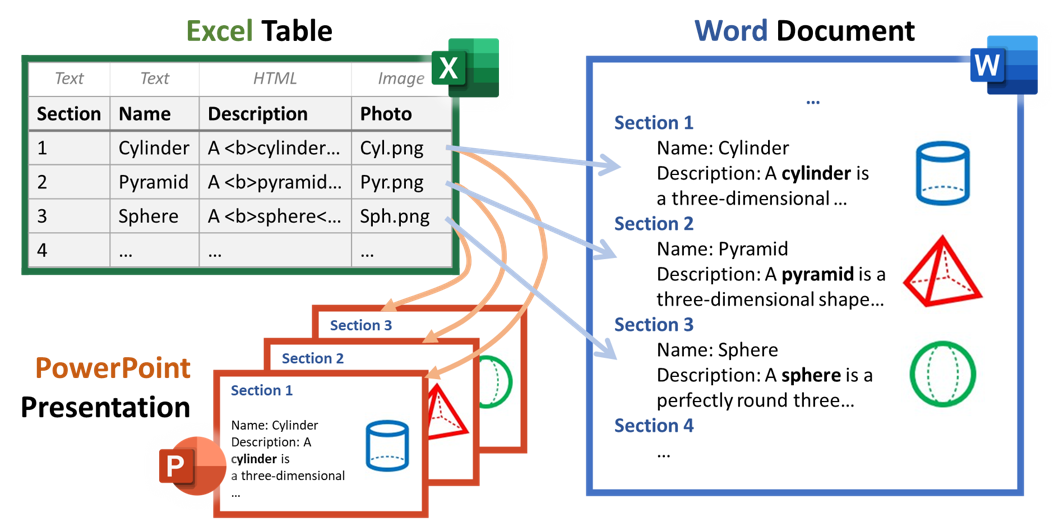
Repeating Sections automatically generates multiple sections in a Word or PowerPoint document from rows in an Excel table. Each row becomes a section in Word (or slide in PPT), based on a template section/slide you design. It supports a variety of content types, including text, images, and tables, making it ideal for structured reports, catalogs, and personalized documents.
Benefits
- Time-Saving: Automates repetitive document creation tasks.
- Consistency: Ensures uniform formatting across all sections.
- Scalability: Handles hundreds of rows/sections without manual copy-paste.
- Flexibility: Supports rich content.
- Personalization: Tailors each section to unique data points.
Features
- Template‑Driven Generation - Define a single section in Word or a single slide in PowerPoint, then automatically repeat it for every row in an Excel table—ensuring consistent structure and formatting across the entire document or presentation.
- Dynamic Content Binding - Automatically populate each section with Excel data using linked fields. Text, HTML, images, and tables are replaced per row with no manual editing required.
- Robust Image Support - Insert images from multiple sources, including images embedded directly in cells, named images in the workbook, or publicly accessible image URLs—with built‑in scaling controls.
- Mixed Static and Dynamic Content - Combine fixed content (repeated in every section) with dynamic, row‑specific data to create rich, professional layouts.
- Batch Document Updates - Generate or refresh entire Word documents or PowerPoint decks in one update—even with hundreds of sections—by submitting data from Excel and running Update.
- Flexible Layout Control - Maintain full control over fonts, styles, spacing, and section size. In Word, sections can range from a single line to full chapters; in PowerPoint, each row maps cleanly to a slide layout.
- Powerful Automation Combinations - Works seamlessly with Auto‑Hide Rows/Columns, sorting, filtering, calculated columns, and Conditional Content—enabling highly customized and logic‑driven document generation. Supports multi-slide section templates.
- Multi‑Format Output - Supports both Word and PowerPoint, allowing the same Excel data source to drive reports, catalogs, and presentations.
Use Cases
Repeating Sections is designed for documents and presentations where structure stays consistent, but content varies by record. It enables teams to produce polished, data‑rich documents at scale—without manual copying, broken links, or formatting drift.
Repeating Sections is ideal whenever your document or presentation needs a repeatable structure fueled by changing Excel data—produced quickly, accurately, and at scale.
Data‑Driven Reports with Repeated Findings or Entries
Ideal for reports that require a consistent section layout repeated many times, such as:
- Inspection, audit, or assessment reports
- Compliance or regulatory documentation
- Research, technical, or evaluation reports
Each row in Excel generates a formatted section in Word or a slide in PowerPoint, automatically inserting text, tables, images, and calculated values while preserving layout and styles.
Product, Asset, and Inventory Documentation
Create professional documentation from structured Excel data, including:
- Product catalogs and spec sheets
- Asset registers and equipment inventories
- Estate, insurance, or valuation listings
Each product or item becomes its own section or slide, with support for tables and images—making it easy to maintain visual consistency.
Sales, Proposals, and Client‑Specific Deliverables
When selling or consulting requires customized content at scale, Repeating Sections allows you to:
- Generate proposals with repeated solution or scope sections
- Create client‑specific slides or proposal appendices
- Update documents live as Excel data changes
Because AnalysisPlace uses robust links instead of fragile file references, documents remain reliable even when shared or reorganized.
Project, Task, and Status Reporting
Turn structured tracking data into clear documentation:
- One section per task, deliverable, or milestone
- Consistent layouts across phases or owners
- Easy updates as status or priorities change
Filtering, sorting, and conditional logic in Excel can directly control which sections are generated—without re‑designing the document.
Structured Presentations from Tabular Data
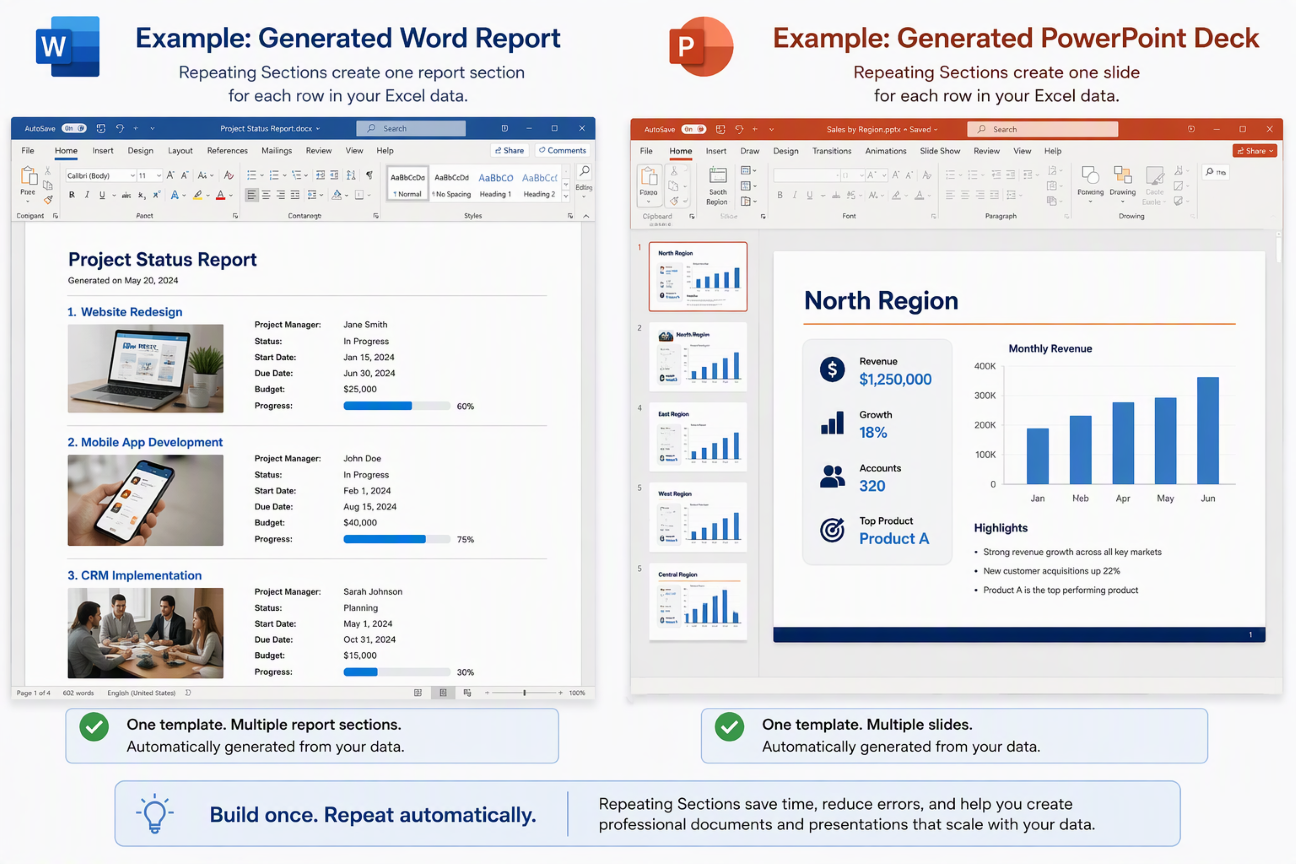
Repeating Sections is equally powerful for PowerPoint:
- One slide per product, client, location, or topic
- Consistent slide layouts driven by Excel rows
- Fast regeneration of entire decks as data updates
- Supports multi-slide section templates
This makes it ideal for roll‑ups, executive summaries, catalogs, or portfolio reviews. [analysisplace.com]
Any “Same Layout, Different Data” Scenario
If your workflow involves:
- Copying and pasting sections repeatedly
- Keeping formatting consistent across dozens or hundreds of entries
- Updating documents every time Excel data changes
Repeating Sections automates the process while keeping you fully inside Microsoft Excel, Word, and PowerPoint.
How it Works
Start by defining your data in an Excel table and designing a template section in Word or PowerPoint. When you submit and update, Repeating Sections automatically generates one section or slide per row, replacing linked text, images, and tables with row‑specific content—keeping formatting consistent and updates fast.
Excel Submit
- When user clicks "Submit", the add-in includes Repeating Section table data in the transfer to Word/PowerPoint
Word Update
- The add-in "resets" the sections: it deletes the section copies, leaving the section template
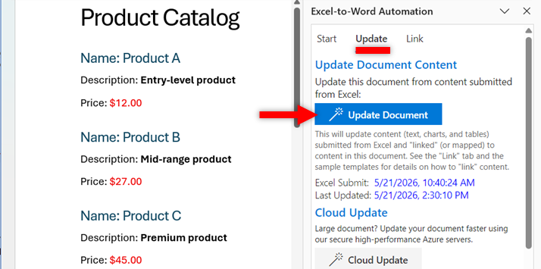
- The add-in makes copies of the template section, one copy for each row in the corresponding Excel Repeating Section table
- The add-in then performs the update, including updating all "Linked" content in the sections. Any applicable Conditional Content is removed prior to the update.
PowerPoint Update
- The add-in "resets" the sections: it deletes the section slide copies, leaving the section slide templates
- The add-in makes copies of the template slides, one copy for each row in the corresponding Excel Repeating Section table
- The add-in then performs the update, including updating all "Linked" content in the sections (slides).
See the working examples in the Insert Sample Content, Repeating Sections worksheet and corresponding sections of the Word or PowerPoint Sample Content.
Instructions
Video Tutorials
Word Tutorial
PowerPoint Tutorial
To get started, intially set up your Repeating Sections table using the Excel add-in, then a linked template section in Word or PowerPoint. Then to update sections: Submit from Excel, then Update in Word or PowerPoint.
Initial Set Up - Excel
- Prepare your Excel Table (it must be a Table, not a named range).
- Organize data in rows (e.g., each row = product, employee, event). Each column is an item (e.g. some text, an image) that you want to update in each section.
- The 1st row (the column title) is the item name. This is the name you'll link in Word. Avoid changing the name after you've linked the content*.
- Add your data in the table body (rows 2 and below)
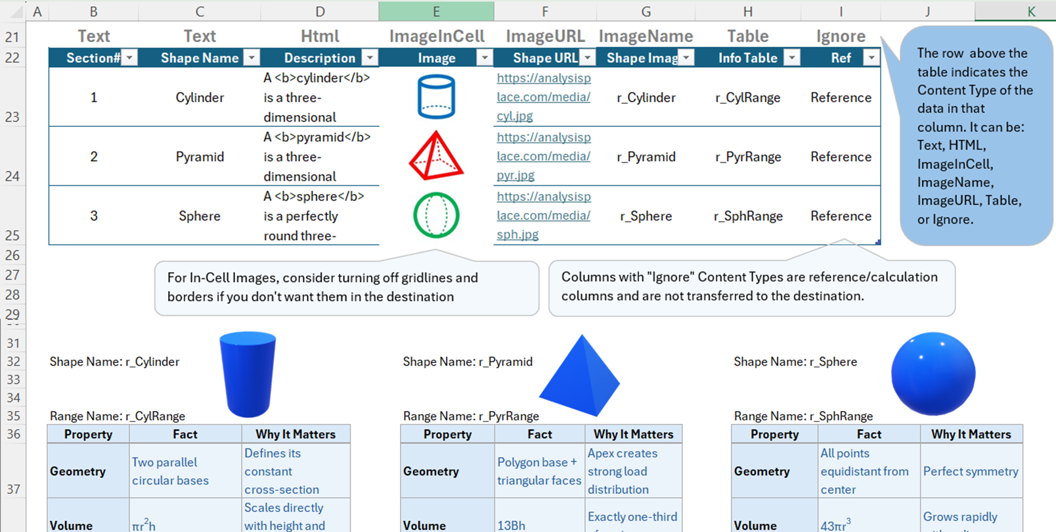
- Optional (needed for non-text columns): Specify the Content Type of each column in the row immediately above the table. Content Type can be one of these: Text, HTML, ImageInCell, ImageName, ImageURL, Table, or Ignore. See "Content Types" table below. If it does not contain one of these, then "Text" is the default. The add-in will not submit columns with type "Ignore" (you can use those columns for calculations, etc.). If you later change the Content Type, update the link in Word/PPT.
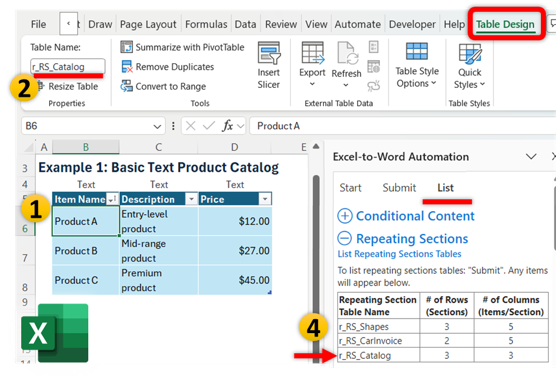
- Name the table starting with your prefix + "RS_" + your table name (e.g. r_RS_Catalog). To create a Table: Home > Format as Table
- Click "Submit" to make the content available to Word or PowerPoint
- View a list of valid Repeating Sections on the List tab. It includes the # of rows (sections) and columns (items per section)
*Note: if you later change the column name or content type, update that link in Word/PPT.
Initial Set Up - Word
After the initial set-up in Excel (see above), follow these steps using the Word add-in:
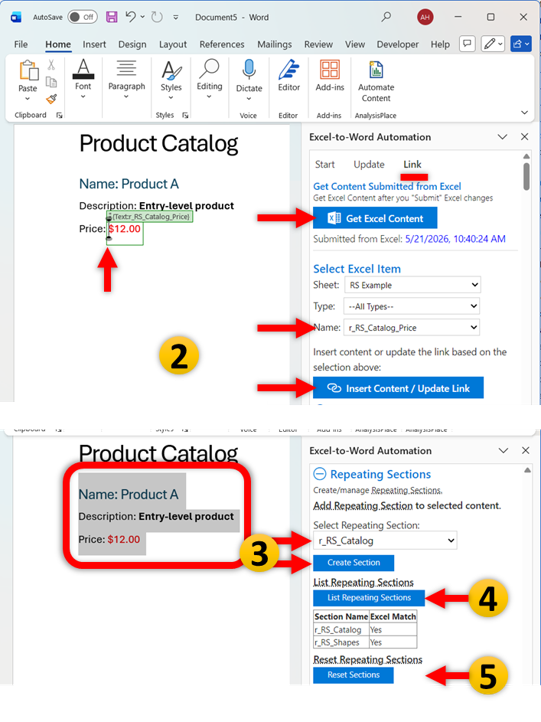
- Design your template section.
- It can include static and linked content.
- If each section is a page, include a Page Break at the beginning or end.
- Link Excel Items to selected Word content
- Use the add-in (Link tab) to link content in the template section to items submitted from Excel. The names of the Repeating Section items (from the Excel table) are derived from: the Repeating Section table name + "_" + the column name (e.g. r_RS_Catalog_Price where r_RS_Catalog is the table name and Price is the column name). You can also link content to items not in Repeating Section tables (e.g. the CustomerName which is the same for all section copies).
- Create the Repeating Section
- Select the content of the template section. Ensure there is a return at the end of the section so section copies don't overlap.
- On the "Link" tab of the Word add-in, "Select Repeating Section" contains a list of the sections submitted from Excel. Select the applicable one from the drop-down list, then click Create Section. This surrounds the content with a content control named "RepeatingSection: " + your selected section name.
- List Repeating Sections shows a list of sections in the Word document.
- Reset Sections removes any copies of the section template.
Then to update sections: Submit from Excel, then Update in Word (see below).
Note: Word cloud/template updates are not yet supported.
Initial Set Up - PowerPoint
After the initial set-up in Excel (see above), follow these steps using the PowerPoint add-in:
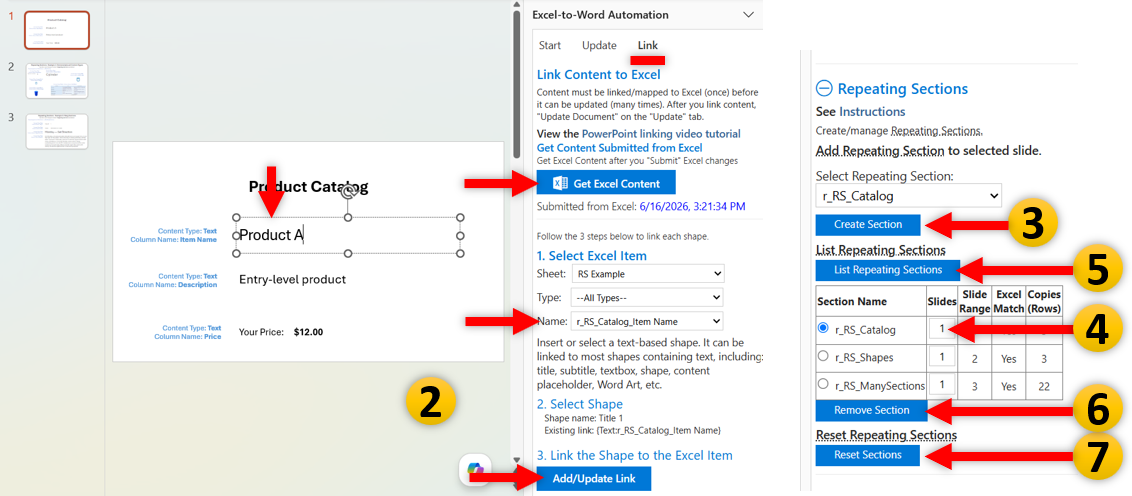
- Design your template slide(s). It can include static and linked content.
- Link Excel Items to PowerPoint shapes
- Use the add-in (Link tab) to link content in the template section to items submitted from Excel. The names of the Repeating Section items (from the Excel table) are derived from: the Repeating Section table name + "_" + the column name (e.g. r_RS_Catalog_Item Name where r_RS_Catalog is the table name and Item Name is the column name). You can also link content to items not in Repeating Section tables (e.g. the CustomerName which could be the same for all section copies).
- Tag the slide as a Repeating Section template
- Select the template slide
- On the "Link" tab of the PowerPoint add-in, "Select Repeating Section" contains a list of the sections submitted from Excel. Select the applicable one from the drop-down list, then click Create Section. This tags the slide as a Section template.
- Optional: for a multi-slide template
- Enter the number of slides in the template in the Slides column. The Slide Range column shows the range of slides in the template that would get copied for each row.
- Example: in the example below, there are 3 slides in the template. The template Slide Range is 1-3. These 3 slides would get copied for each row in the Excel table. Row 1 for customer A, row 2 for customer B, etc. If there are 3 customers (3 data rows), then the resulting section would have 9 slides. "Reset Sections" would delete the copies (slides 4-9).
- Slide 1: Customer A Overview
- Slide 2: Customer A Details
- Slide 3: Customer A Financials
- Slide 4: Customer B Overview
- Slide 5: Customer B Details
- Slide 6: Customer B Financials
- Slide 7: Customer C Overview
- Slide 8: Customer C Details
- Slide 9: Customer C Financials
- ...
- Multi-slide ranges must be contiguous, cannot overlap with other repeating sections, and cannot be nested.
- List Repeating Sections shows a list of section template slides in the PowerPoint document.
- Remove Section untags the selected section. It does not delete any content.
- Reset Sections removes any copies of the section template slides. Reset prior to editing links or sections so you don't unintentionally modify copies that will be deleted.
To Update (whenever needed)
- Modify content in your repeating sections tables, as needed.
- This can include importing, data entry, add/removing rows, resizing, hiding rows, filtering, or sorting.
- Data can be imported into Excel tables using a variety of automation methods.
- "Submit" from Excel
- "Update" in Word or PowerPoint
Content Types
The type label is optional. The default type is "Text".
Content Type should be entered in the row directly above the table.
Alternatively, the type can be in the header row following a colon (e.g. ColumnTitleName:Text). This can be useful if the table appears in row 1 (e.g. in some import operations).
Note that if you change the Content Type, update the link in Word or PowerPoint.
| Content Type Label | Description | Example |
| Text | Enter any text or data (can be based on formulas) The text can appear in titles, paragraphs, shapes, etc. in the destination document. And can be formatted as desired. Use Alt-Enter for line breaks |
Some Text |
| HTML | Most HTML-formatted content. The HTML can be created dynamically (e.g. using formulas or automation tools) enabling extensive possibilities. |
Some <b>Bold</b> text. <p>paragraph</p> |
| ImageInCell | Any image placed in the cell Can also use Excel's =Image(ImageURL) formula. The image is sized based on how it appears in the cell. Any cell borders will appear in Word/PPT, so remove borders, if desired. |
=Image(https://analysisplace.com /media/cyl.jpg) |
| ImageName | Shape or picture in the workbook, named starting with your prefix Can include charts (pie, bar, etc.), pictures, shapes, SmartArt, icons, etc. Shape appearance can be updated dynamically (e.g. based on formulas) prior to the Submit. |
r_MyImage |
| ImageURL | URL of an image. The image must be publicly accessible. You can test the URL using Excel's =Image() formula. Image size can be scaled by adding ",w=" + pixels (height will be auto-scaled) or ",h=" + pixels (width will be auto-scaled). Scaling can only reduce size. |
https://analysisplace.com/media/cyl.jpg MySite.com/small_img.png,w=500 |
| Table | Must be a named table or range in the workbook starting with your prefix.
Tables can be Excel-formatted (Flex table) or destination-formatted. See "Manage Item Properties" on the "List" tab of the add-in. Tables would typically include data or financials specific to the Repeating Section row. |
r_MyRangeName r_MyTableName |
| Ignore | Column will not be submitted. Useful for calculation/reference columns. |
Content Types Example