URL-Based Images
Dynamic Image Insertion from Web URLs
Use image URLs to dynamically populate documents with product photos, logos, profile images, property photos, maps, and more.
This feature inserts or updates images in Excel, Word, or PowerPoint using publicly accessible image URLs. Images can appear directly in Excel or be downloaded into Word or PowerPoint to minimize file transfer size.
There are two versions of this feature:
- The first version displays the image in Excel. The image appears in Excel and can then be submitted to Word or PowerPoint to update images.
- The second version inserts the image directly into Word or PowerPoint to reduce file transfer sizes.
The URL must be publicly accessible on the web. Images may be hosted on servers such as OneDrive, Google Photos, DropBox, AWS, or other public locations.
This feature optionally enables flexible image resizing.
This feature can be combined with features such as "Conditional Content", "Repeating Sections", and "File Merge" to enable powerful document automation scenarios.
Use Cases
-
Product Image Selection Automatically display the correct product image based on selection logic or lookup values in Excel.
-
Person or Profile Photos Insert a specific individual’s photo—such as an employee, student, or customer—based on a drop‑down list or ID.
-
Real Estate Property Images Populate documents with photos of comparable properties, floorplans, or maps using URLs stored in Excel.
-
Automated Branding & Logos Swap logos, partner badges, or certification seals dynamically based on client, region, or business unit.
-
Dashboard & KPI Indicators Insert status icons, trend arrows, or heatmap tiles driven by Excel formulas or conditional logic.
-
Marketing & Sales Collateral Update product hero images, packaging variants, or regional campaign graphics directly from hosted URLs.
-
Compliance & Audit Evidence Pull in inspection photos, equipment images, or timestamped evidence stored in OneDrive or other public locations.
-
Construction & Field Service Documentation Insert site photos, before/after images, or equipment condition photos tied to job IDs or work orders.
-
Scientific & Lab Reporting Include microscopy images, instrument readouts, or sample photos linked to experiment or batch numbers.
-
Training Manuals & SOPs Add step‑by‑step procedure images, tool diagrams, or safety icons based on the selected process or machine type.
See the "Sample Content" documents for working examples.
1. URL-Based Images – Image Appears in Excel
This option inserts or updates images based on image URLs. The images can then be updated in Word or PowerPoint.
This is similar to Excel’s IMAGE() formula, but the image is not in-cell and provides more flexibility for placement and sizing.
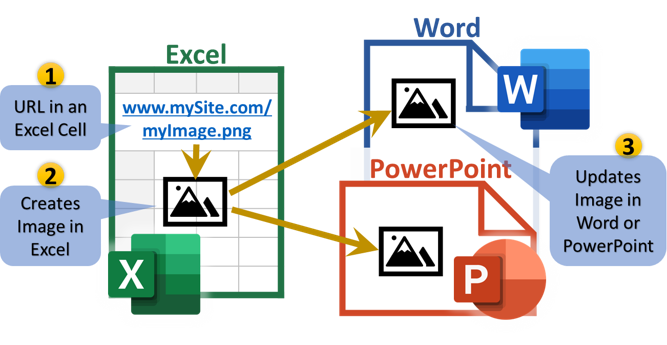
Instructions
- Name a cell: "urlimg_" + your prefix + your image name. For example: "urlimg_r_MyImage".
- Set the cell value to the image URL. For example: "https://mysite.com/image.png"
- Optional: To scale size, append the URL with ",h=" or ",w=" + pixels. For example: "https://mysite.com/image.png,w=300" inserts image 300 pixels wide (height is auto-scaled) or "https://mysite.com/image.png,h=200" inserts image 200 pixels high (width auto-scaled). Image will never be scaled larger than the original.
- Click the Insert/Update URL-Based Images button on the Submit tab of the Excel add-in. The image should appear/update. It updates images on "This Sheet Only", if the option is checked in the add-in. Move the image anywhere on the worksheet (the shape must be on the same worksheet as the source range).
- Click Submit. The image will be included in the data transferred to Word/PPT.
- Then "Link" the image once in Word/PowerPoint. Use the same name as the Excel cell (without the "urlimg_" prefix).
- Update whenever needed: click Insert/Update URL-Based Images, then Submit in Excel and Update in Word/PPT
2. URL-Based Images – Image Appears Directly in Word or PowerPoint
This option inserts or updates images directly in Word or PowerPoint.
This significantly reduces transfer size because images are downloaded and inserted directly into the destination document.
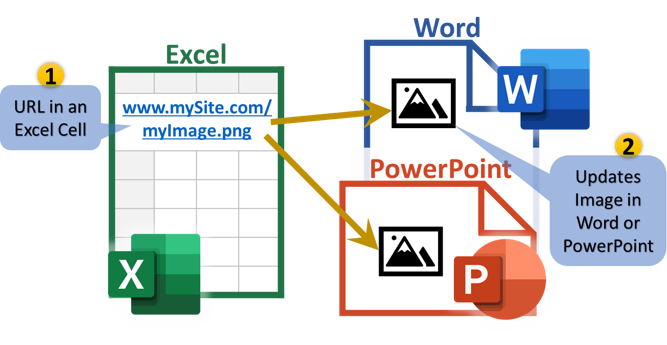
Instructions
- Name the cell: your prefix + your image name + "_urlimg". For example: "r_MyImage_urlimg".
- Set the cell value to the image URL. For example: "https://mysite.com/image.png"
- Optional: To scale size, append the URL with ",h=" or ",w=" + pixels. For example: "https://mysite.com/image.png,w=300" inserts image 300 pixels wide (height is auto-scaled) or "https://mysite.com/image.png,h=200" inserts image 200 pixels high (width auto-scaled). Image will never be scaled larger than the original.
- Click Submit in Excel. The image URL will be included in the data transferred to Word/PPT, not the image itself.
- Then "Link" the item once in Word/PowerPoint. The Item Type will be "urlimg". Use the same name as the Excel cell range name.
- Update whenever needed: Submit in Excel and Update in Word/PPT. Word/PPT downloads the images and inserts/updates them.
Tip: use Excel's IMAGE() formula to show a thumbnail view of the image
Image Formats, Placement, and Sizing
Image formats
Image formats supported: png, jpg, and gif. Webp, bmp, and tiff images are converted to png images. Svg images are not supported.
Image Placement
The upper-left corner of the new image will match the original image location
Image Sizing
Aspect ratio is always maintained
In Word: Images are inserted with their source resolution and size. In the Word add-in, images may be shrunk to fit within the width of the page/container. Word cloud updates are not automatically shrunk by Word.
In PowerPoint: The new image is resized to match the width of the original image